Introduction
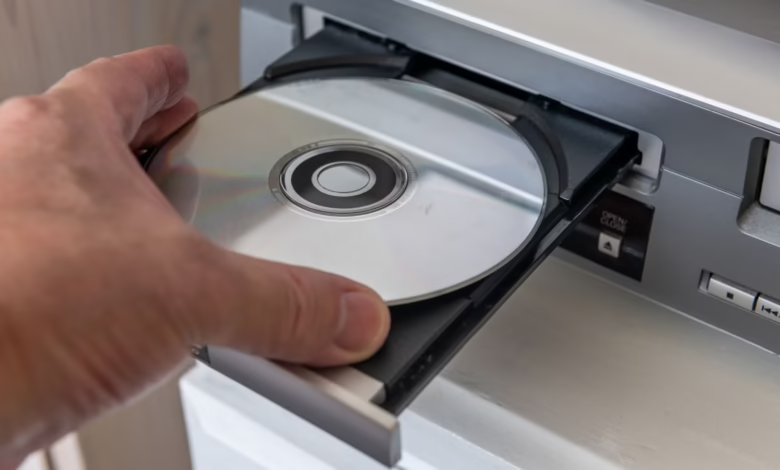
A DVD drive is one of the most recognized computer hardware components used for reading and writing optical discs. Although cloud storage and USB devices are more common today, DVD drives still play an important role in data storage, media playback, software installation, and backup solutions.
Many users still rely on DVD drives for watching movies, installing operating systems, accessing archived files, or creating physical backups. Businesses, schools, gamers, and multimedia users continue to use this technology because of its affordability and long-term storage capability.
This article explains how DVD drives work, their types, features, benefits, common issues, and how to choose the best option for your needs.
What Is a DVD Drive?
A DVD drive is an optical disc drive designed to read and sometimes write data on DVDs and CDs. The term DVD originally stood for “Digital Versatile Disc” because of its ability to store large amounts of data compared to older CD technology.
A standard DVD can hold:
- 4.7 GB on a single-layer disc
- 8.5 GB on a dual-layer disc
DVD drives use laser technology to access data stored on the disc surface.
How a DVD Drive Works
A DVD drive functions using a laser beam that scans microscopic pits and lands on the disc surface. These patterns represent digital information.
The process includes:
- Inserting the disc into the drive
- The spindle motor spins the disc
- The laser reads encoded data
- The computer converts the information into files, audio, or video
Writable DVD drives can also burn data onto blank discs using a stronger laser.
Types of DVD Drives
Internal DVD Drive
An internal DVD drive is installed inside a desktop computer or laptop.
Features
- Direct motherboard connection
- Faster performance
- Stable power supply
- Common in desktop PCs
Advantages
- Better speed
- Cleaner setup
- Lower cost compared to external drives
External DVD Drive
An external DVD drive connects through USB.
Features
- Portable design
- Plug-and-play functionality
- Compatible with laptops and ultrabooks
Advantages
- Easy to carry
- No installation required
- Useful for devices without built-in optical drives
DVD Drive Formats
DVD-ROM
Used only for reading DVDs and CDs.
DVD-R
Allows one-time recording.
DVD-RW
Supports rewriting data multiple times.
DVD+R and DVD+RW
Alternative writable DVD standards with improved compatibility in some devices.
DVD-RAM
Designed for high reliability and repeated rewriting.
Common Uses of DVD Drives
Watching Movies
DVD drives allow users to play movie discs on computers and media systems.
Software Installation
Many software packages and older operating systems still come on DVDs.
Data Backup
DVDs remain a cost-effective solution for storing important files.
Music and Media Access
Users can access CDs, audio collections, and archived multimedia content.
Gaming
Older PC and console games often require DVD drives for installation.
Advantages of Using a DVD Drive
Affordable Storage
DVD discs are inexpensive compared to many storage alternatives.
Long-Term Backup
Properly stored DVDs can preserve data for years.
Offline Access
DVD drives do not require internet connectivity.
Media Compatibility
Many legacy systems and entertainment devices still support DVDs.
Portable Media Sharing
DVDs can easily be distributed among users without online transfer.
Disadvantages of DVD Drives
Slower Than Modern Storage
DVD drives are much slower than SSDs and flash drives.
Limited Storage Capacity
Modern files and applications may exceed DVD limits.
Mechanical Wear
Moving parts can fail over time.
Declining Popularity
Many modern laptops no longer include optical drives.
Internal vs External DVD Drive
| Feature | Internal DVD Drive | External DVD Drive |
| Installation | Inside PC | USB connection |
| Portability | Low | High |
| Speed | Usually faster | Depends on USB version |
| Convenience | Permanent setup | Plug-and-play |
| Best For | Desktop users | Laptop users |
Important Features to Consider
Read and Write Speed
Higher speeds reduce disc burning time.
USB Compatibility
External drives commonly use:
- USB 2.0
- USB 3.0
- USB-C
Disc Support
Check support for:
- CD
- DVD
- Dual-layer DVD
- Rewritable discs
Noise Level
Some drives operate more quietly than others.
Operating System Support
Ensure compatibility with:
- Windows
- macOS
- Linux
DVD Drive and Modern Computing
Despite the rise of cloud storage, DVD drives remain useful in several industries:
- Educational institutions
- Media production
- Government archives
- Medical record storage
- Software recovery systems
Many professionals still use optical media because it offers offline access and physical ownership of data.
Common DVD Drive Problems
DVD Drive Not Detected
Possible causes include:
- Loose cables
- Driver issues
- BIOS settings
- Hardware failure
Disc Read Errors
Dirty or scratched discs often cause reading problems.
Slow Burning Speed
This may result from:
- Poor quality discs
- Background software
- Outdated firmware
Eject Button Not Working
Mechanical faults or software freezes can prevent disc ejection.
How to Maintain a DVD Drive
Keep Discs Clean
Dust and scratches affect performance.
Use High-Quality Media
Cheap discs may fail during burning.
Avoid Physical Shock
Optical drives contain delicate moving parts.
Update Drivers
Updated firmware improves compatibility and performance.
Clean the Laser Lens
Lens cleaning kits help maintain reading accuracy.
DVD Drive vs Blu-ray Drive
| Feature | DVD Drive | Blu-ray Drive |
| Storage Capacity | Up to 8.5 GB | Up to 100 GB |
| Video Quality | Standard HD | Full HD / 4K |
| Cost | Lower | Higher |
| Compatibility | Widely supported | Newer systems |
Blu-ray drives can usually read DVDs, but standard DVD drives cannot read Blu-ray discs.
Best Situations to Use a DVD Drive
A DVD drive is still useful when:
- Accessing old media collections
- Installing legacy software
- Creating offline backups
- Watching DVD movies
- Recovering archived files
- Sharing physical media
Future of DVD Drives
The popularity of DVD drives has declined due to streaming services and cloud technology. However, optical storage continues to survive in archival environments and specialized industries.
External USB DVD drives are now the preferred option because they offer flexibility without requiring permanent installation.
While not essential for every user, DVD drives still provide practical benefits where physical storage and offline access are important.
Tips for Choosing the Right DVD Drive
For Laptops
Choose a lightweight external USB drive.
For Desktop PCs
Internal SATA DVD drives provide stable performance.
For Multimedia Users
Look for support for multiple disc formats.
For Backup Purposes
Select a reliable rewritable DVD drive.
For Portability
Slim external drives are ideal for travel.
Frequently Asked Questions
What does a DVD drive do?
A DVD drive reads and writes data on DVDs and CDs using laser technology.
Can a DVD drive read CDs?
Yes, most DVD drives can read both DVDs and CDs.
Are external DVD drives good?
Yes, external DVD drives are portable, convenient, and compatible with many devices.
Why do modern laptops not include DVD drives?
Manufacturers remove optical drives to make laptops thinner and lighter.
Can a DVD drive play movies?
Yes, DVD drives can play movie discs with compatible media software.
See also: 5 Easy Tips to Grow Your Business Network
Conclusion
A DVD drive remains a useful piece of hardware for data access, software installation, media playback, and long-term storage. Even though digital downloads and cloud services dominate modern computing, many users still value the reliability and convenience of optical media.
Whether choosing an internal or external model, understanding the features and compatibility options can help users select the best DVD drive for their needs. From personal backups to legacy software access, DVD drives continue to serve an important role in today’s technology landscape.